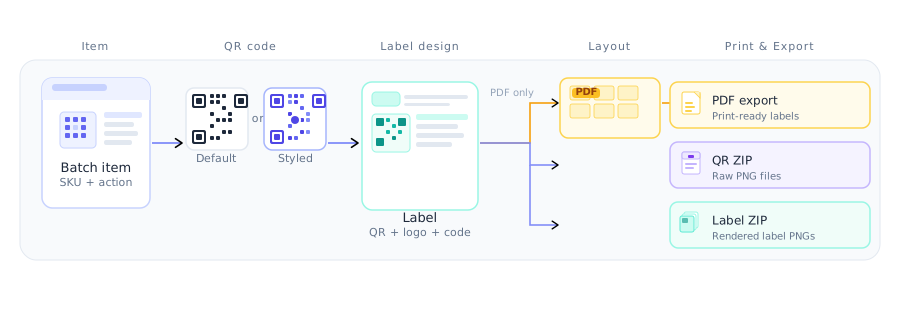
This system turns your products into individually traceable items. Each QR code carries a public part (for anyone who scans) and a private secret (for authenticity checks). Codes are organised into batches, printed onto labels, and tracked through their lifecycle.
Key actions
Scan any code to open its public verification page
Log in to generate, print and manage codes
Tips
The big “?” button on any page opens this guide at the matching section.
Scanning is free and never counts toward your quota.
Verifying a code
Anyone can verify a code — no account needed. You scan it, the page shows the manufacturer's secret code from their database, and you compare that against the secret printed on the physical label. A match means genuine.
Key actions
Scan the code with your phone camera (no app needed)
Read the manufacturer name and the secret code shown on screen
Compare the on-screen secret with the one printed on the label
Proceed to the product site if they match; report if they don't
Step by step
Scan — Scan the QR with your phone camera — the verification page opens automatically in the browser.
Page opens — It shows the manufacturer name and the lookup result.
See the secret — The secret code is displayed, fetched from the manufacturer's database — no entry needed from you.
Check the label — Find the secret printed on the physical label (next to the QR) and check it matches the screen.
Take action — Match → tap Proceed to the product website (authentic). Mismatch → report it. Not found → the code isn't in the system and is likely counterfeit.
Tips
You do NOT type the secret — it is shown from the manufacturer's database for you to compare against the label.
A “Previously Verified” notice only means the code was scanned before; it is not itself a sign of counterfeiting. The secret comparison is the definitive check.
Reporting a counterfeit
If the secret codes don't match, or the QR isn't found, report it straight from the verification result page. No account or personal details required.
Key actions
Tap the “Report Counterfeit” button on the result page
Confirm in the dialog
Step by step
Trigger — The secrets don't match, or the QR isn't found in the system.
Report — Tap “Codes Don't Match — Report Counterfeit” on the result page.
Confirm — Confirm in the dialog — no account or personal details needed.
Done — The report is forwarded to the brand owner, with your optional location to help trace the source.
Tips
Reports are anonymous and help brand owners pinpoint counterfeit hotspots; your optional location helps identify the source.